




















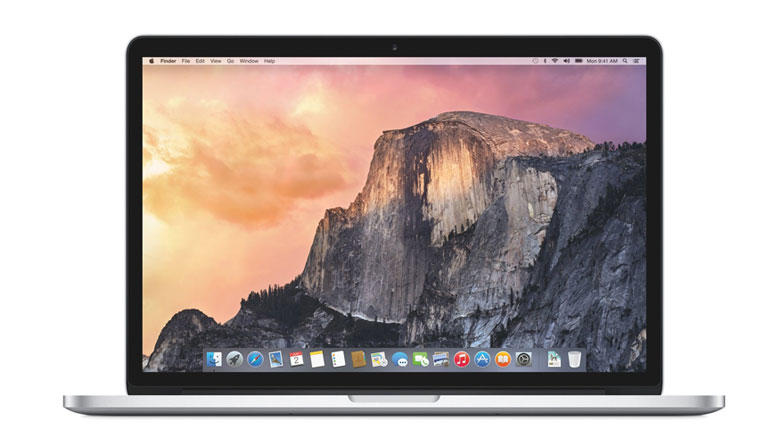
1. New Spotlight search
 Spotlight received a significant overhaul with Apple’s introduction of OS X Yosemite, making it more powerful and useful than ever before. Press Cmd+Space and the new Spotlight search bar will appear on the screen. Just as in the previous version, it’s possible to search through your files in real time, but what’s really useful is it will now do currency conversions, simple calculations and word or phrase definitions. What’s more, the searches provide interactive previews, which means you can do all sorts of things – send emails, make phone calls – right within Spotlight.
2. Sign your name with the trackpad

If you’d like to put your signature in a text document at the end of an email or even overlay it on to an image, you’re in luck. Preview now has a feature that allows you to scribble your signature using your laptop’s (or an external) touch pad. Let’s say you want to sign a document that’s in PDF format. First, open the PDF using Preview. Then, click the Toolbox icon in the top right corner. A new Markup Toolbar will appear. Now click the Sign icon, which looks like a small signature and is located next to the Text icon. Click Create Signature and follow the on screen instructions.
3. Dark Mode
 Yosemite comes with a Dark Mode, which can be accessed by going to System Preferences > General and checking the ‘Use dark menu bar and Dock’ box. This significantly changes the look of Yosemite. The menu bar and its drop-down menus will now be a dark, slightly translucent charcoal colour. Almost every app you use will now have dark menus. The Dock will also be notably darker, but like the menu bar it will also retain some of its translucency. This is a great feature that can help battle excessive glare from your screen, plus it looks pretty good too.
4. New Maps

Apple Maps is still in many ways inferior to Google Maps, but recent updates mean it might be worth taking another look at what’s on offer. The most useful feature is the traffic option.
Open Maps and click the menu on the
bottom left of the screen before clicking Show Traffic. You’ll now get live traffic updates on many major roads across the UK, including road closures and road maintenance. There’s also a 3D mode. Click the 3D button in the middle of the compass on the bottom right of the screen and the viewing angle will tilt. For the best effect, you should also click the satellite button in the top right corner. Major landmarks and buildings can now be seen in 3D. Search for a large city, such as London, and a 3D Flyover button will appear. Clicking the button will provide an impressive bird’s-eye tour of the city.